

Tutorial 6/8: Explore and debug your workspace Help me explore and debug my Nx workspace.
Use my existing workspace and projects for hands-on examples.
Run to list all projects, to visualize dependencies, and to inspect task details. Help me understand why specific dependencies exist and debug any caching or configuration issues.
For machine-readable output (useful for scripting or AI agents), use .
Stay on-topic: only teach what's covered on this page. Do not introduce concepts from later tutorials.
Tutorial: https://canary.nx.dev/docs/getting-started/tutorials/understanding-your-workspace.md
Help me explore and debug my Nx workspace.
Use my existing workspace and projects for hands-on examples.
Run to list all projects, to visualize dependencies, and to inspect task details. Help me understand why specific dependencies exist and debug any caching or configuration issues.
For machine-readable output (useful for scripting or AI agents), use .
Stay on-topic: only teach what's covered on this page. Do not introduce concepts from later tutorials.
Tutorial: https://canary.nx.dev/docs/getting-started/tutorials/understanding-your-workspace.md
Help me explore and debug my Nx workspace.
Use my existing workspace and projects for hands-on examples.
Run to list all projects, to visualize dependencies, and to inspect task details. Help me understand why specific dependencies exist and debug any caching or configuration issues.
For machine-readable output (useful for scripting or AI agents), use .
Stay on-topic: only teach what's covered on this page. Do not introduce concepts from later tutorials.
Tutorial: https://canary.nx.dev/docs/getting-started/tutorials/understanding-your-workspace.md
As your workspace grows to dozens or hundreds of projects, you need tools to explore it, debug unexpected behavior, and verify your configuration. Nx provides several commands and visualizations for this.
The project graph
Section titled “The project graph”The best starting point for understanding your workspace is nx graph. It opens an interactive visualization with tabs for projects, tasks, and project details:
nx graphThe project graph shows every project and the dependencies between them. You can:
- Search for specific projects
- Filter to show only affected projects or specific groups
- Click edges between projects to see which files create the dependency (import statements,
package.jsonreferences)
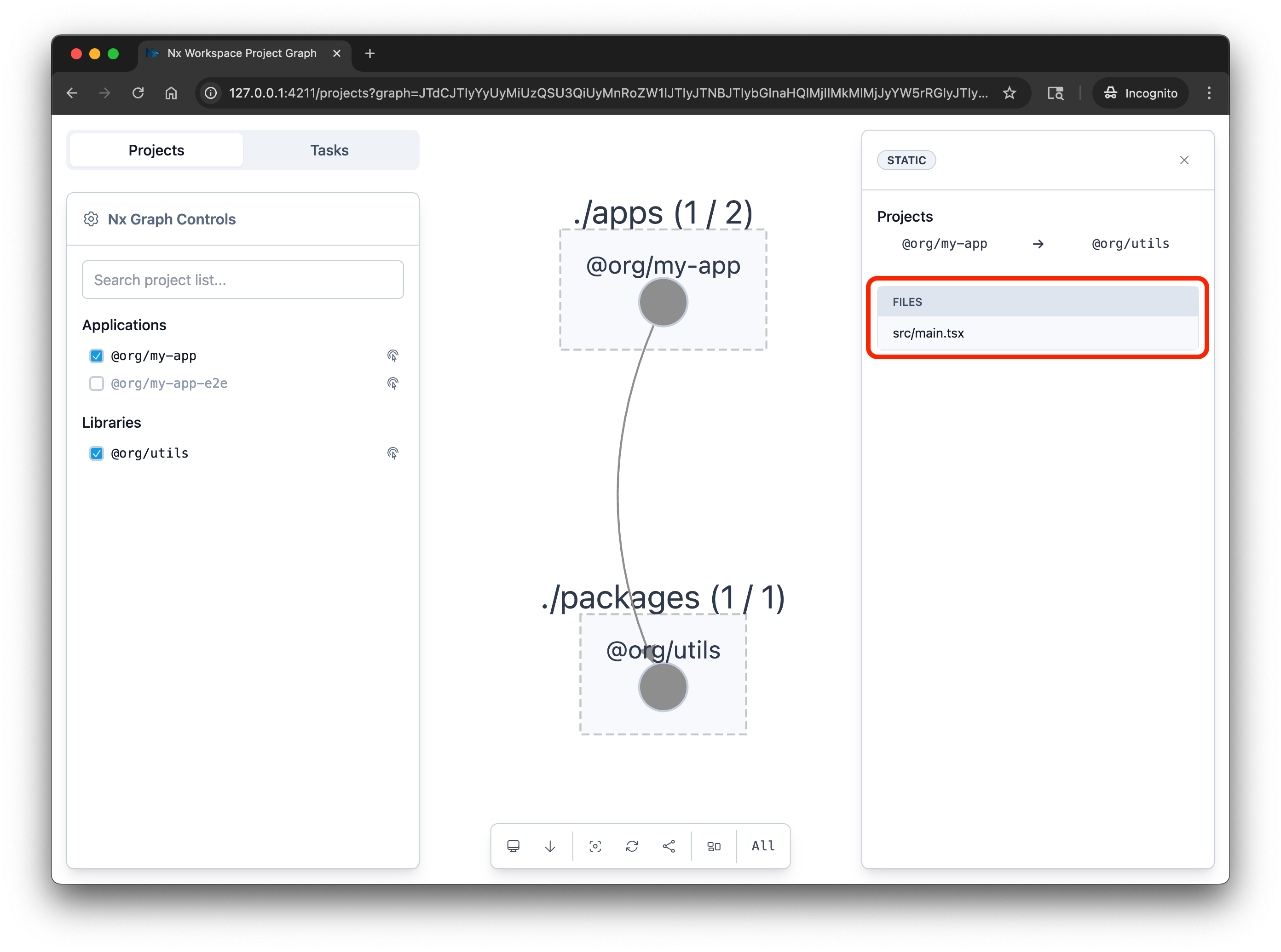
Why does this dependency exist?
Section titled “Why does this dependency exist?”When you see an unexpected dependency in the graph, click the edge between the two projects. The sidebar shows which files contributed to the dependency:
For scripting, write the graph to a JSON file:
nx graph --file=/tmp/graph.jsonThe task graph
Section titled “The task graph”Switch to the Tasks tab in the graph to visualize the task execution plan. Select a task (like build) to see which tasks run and in what order:
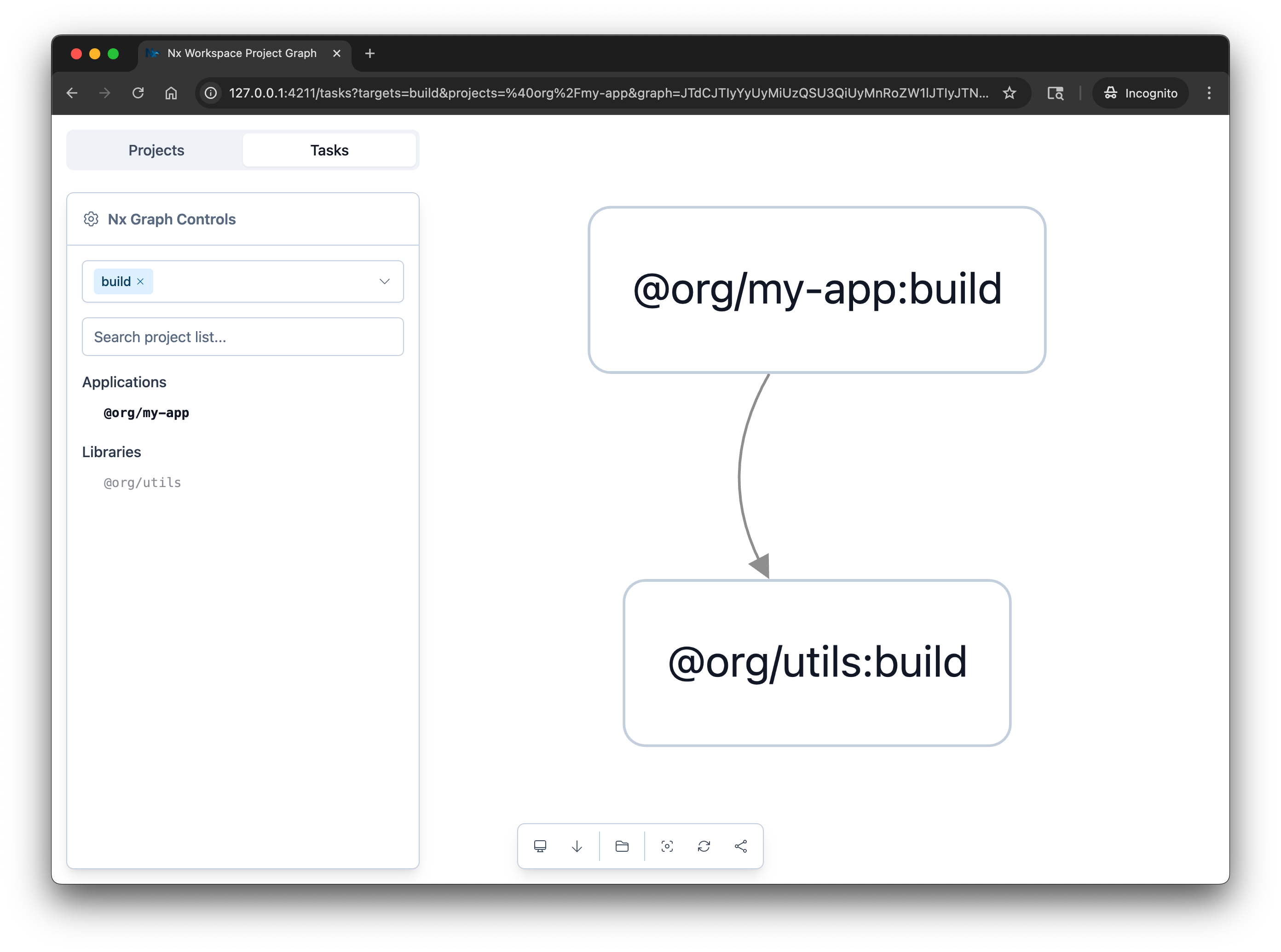
You can also open this directly from the CLI:
nx build my-app --graphThis is useful for verifying that your dependsOn configuration is correct. Write the task graph to a file for analysis:
nx build my-app --graph=/tmp/task-graph.jsonInspecting project details
Section titled “Inspecting project details”Click any project in the graph to see its details, or use the CLI:
nx show project my-appmy-app
Root: apps/my-app
Type:application
Targets
build
vite build
Cacheabletest
vitest run
Cacheable
This shows every task, where its configuration comes from, its inputs, outputs, and dependsOn. To drill into a specific task:
nx show target my-app:buildAdd --json to either command for machine-readable output.
Listing projects from the CLI
Section titled “Listing projects from the CLI”nx show projectsFilter by criteria:
# Only projects that have a build targetnx show projects --with-target build
# Only projects matching a patternnx show projects --projects 'packages/*'
Debugging cache behavior
Section titled “Debugging cache behavior”If a task isn't caching as expected, inspect its inputs and outputs:
nx show project my-appCheck the task's inputs. These are the files and values that contribute to the cache hash. If an input changes between runs, the cache is invalidated. Common causes of unexpected cache misses:
- An untracked config file is included in inputs
- An environment variable changed
- A dependency was updated
Nx Console
Section titled “Nx Console”Nx Console brings all of these capabilities into your editor. In VS Code or WebStorm, you can:
- Browse projects and their targets in a tree view
- View the project graph inline
- Run tasks with a visual interface
- Inspect project details without leaving the editor
Install Nx Console for VSCodeThe official VSCode extension for Nx.
Install Nx Console for JetBrainsAvailable for WebStorm, IntelliJ IDEA Ultimate and more!
Learn more
Section titled “Learn more”- Explore the graph: full graph exploration guide
- Mental model: how Nx thinks about projects and tasks