

Tutorial 4/8: Run tasks across your workspace Help me run tasks in my Nx workspace efficiently.
Use my existing workspace and projects for hands-on examples.
Show me how to run a single task for one project, run multiple tasks across all projects with , and understand how Nx orders task execution. Do not discuss caching or affected commands — those are covered in later tutorials.
Stay on-topic: only teach what's covered on this page. Do not introduce concepts from later tutorials.
Tutorial: https://canary.nx.dev/docs/getting-started/tutorials/running-tasks.md
Help me run tasks in my Nx workspace efficiently.
Use my existing workspace and projects for hands-on examples.
Show me how to run a single task for one project, run multiple tasks across all projects with , and understand how Nx orders task execution. Do not discuss caching or affected commands — those are covered in later tutorials.
Stay on-topic: only teach what's covered on this page. Do not introduce concepts from later tutorials.
Tutorial: https://canary.nx.dev/docs/getting-started/tutorials/running-tasks.md
Help me run tasks in my Nx workspace efficiently.
Use my existing workspace and projects for hands-on examples.
Show me how to run a single task for one project, run multiple tasks across all projects with , and understand how Nx orders task execution. Do not discuss caching or affected commands — those are covered in later tutorials.
Stay on-topic: only teach what's covered on this page. Do not introduce concepts from later tutorials.
Tutorial: https://canary.nx.dev/docs/getting-started/tutorials/running-tasks.md
You've configured your tasks. Now how do you run them, for one project, for many, or only for what changed?
The examples below use Vite and Vitest, but the concepts apply to any tool. Substitute your own build and test commands as needed.
Running a single task
Section titled “Running a single task”Given a project with tasks defined in package.json (or project.json for non-JS projects):
{ "name": "my-app", "scripts": { "build": "vite build", "test": "vitest run", },}{ "targets": { "build": { "command": "vite build", }, "test": { "command": "vitest run", }, },}Run a task with nx run <project>:<task>:
nx run my-app:buildOr the shorthand, which works when the task name doesn't conflict with an Nx command:
nx build my-appYou can also cd into a project directory and run without specifying the project name:
cd apps/my-appnx buildNx resolves the project from the current directory. Try running nx build or nx test in your own workspace to see it in action.
Running multiple tasks
Section titled “Running multiple tasks”Use run-many to run one or more tasks across multiple projects:
# Run build for all projects that have a build tasknx run-many --targets build
# Run multiple tasksnx run-many --targets build test lint
# Run tasks for specific projects onlynx run-many --targets build --projects my-app
The -t and -p flags are shorthands for --targets and --projects.
Nx runs tasks in parallel by default, respecting the task dependencies you've configured. For example, with this configuration:
{ "targetDefaults": { "build": { "dependsOn": ["^build"], }, },}Running nx run-many --targets build builds dependencies first, then dependents:
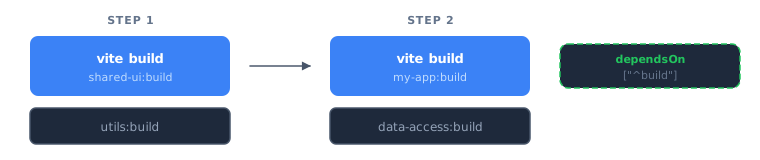
Nx handles the ordering automatically, even when running in parallel.
Passing arguments
Section titled “Passing arguments”Pass arguments directly to the task:
# Use a named configurationnx build my-app --configuration=production
# Forward arguments to the underlying toolnx test my-app --watch
For more details, see pass args to commands.
Controlling parallelism
Section titled “Controlling parallelism”By default, Nx runs tasks in parallel. Limit the number of concurrent tasks with --parallel:
nx run-many --targets build --parallel=3Set --parallel=1 to run tasks sequentially.
Running continuous tasks
Section titled “Running continuous tasks”Some tasks run indefinitely, like development servers. When another task depends on a continuous task, Nx starts both concurrently. For example, running an e2e test that needs a dev server:
nx run my-app:e2eThis works when e2e depends on a serve task marked as continuous (configured in Configuring Tasks). Nx starts the server, waits for it to be ready, then runs the tests.
Nx Console
Section titled “Nx Console”Nx Console is a VS Code and WebStorm extension that provides a visual interface for running tasks, exploring your project graph, and managing your workspace, all without memorizing CLI commands.
Learn more
Section titled “Learn more”- Run tasks: full feature documentation
- Pass args to commands: detailed argument handling