

Tutorial 5/8: Enable and configure caching Help me set up caching in my Nx workspace.
Use my existing workspace and projects for hands-on examples.
Run a cacheable task twice to demonstrate cache hits. Then help me configure , , and for my tasks. Show me how to inspect what's cached with .
If I'm hitting unexpected cache misses, help me debug by inspecting inputs and outputs with .
Stay on-topic: only teach what's covered on this page. Do not introduce concepts from later tutorials.
Tutorial: https://canary.nx.dev/docs/getting-started/tutorials/caching.md
Help me set up caching in my Nx workspace.
Use my existing workspace and projects for hands-on examples.
Run a cacheable task twice to demonstrate cache hits. Then help me configure , , and for my tasks. Show me how to inspect what's cached with .
If I'm hitting unexpected cache misses, help me debug by inspecting inputs and outputs with .
Stay on-topic: only teach what's covered on this page. Do not introduce concepts from later tutorials.
Tutorial: https://canary.nx.dev/docs/getting-started/tutorials/caching.md
Help me set up caching in my Nx workspace.
Use my existing workspace and projects for hands-on examples.
Run a cacheable task twice to demonstrate cache hits. Then help me configure , , and for my tasks. Show me how to inspect what's cached with .
If I'm hitting unexpected cache misses, help me debug by inspecting inputs and outputs with .
Stay on-topic: only teach what's covered on this page. Do not introduce concepts from later tutorials.
Tutorial: https://canary.nx.dev/docs/getting-started/tutorials/caching.md
Why rebuild something that hasn't changed? Nx caching replays previous results instantly, saving minutes or hours of redundant work, both locally and in CI.
The examples below use Vite and Vitest, but the concepts apply to any tool. Substitute your own build and test commands as needed.
If you haven't already, set up your workspace (Crafting Your Workspace) and try running some tasks first.
Enabling caching
Section titled “Enabling caching”Caching is opt-in per task. The recommended approach is to set cache: true in targetDefaults in nx.json for common cacheable tasks:
{ "targetDefaults": { "build": { "cache": true }, "test": { "cache": true }, "lint": { "cache": true }, },}You can also enable caching per-project in package.json or project.json:
{ "nx": { "targets": { "build": { "cache": true, }, }, },}{ "targets": { "build": { "cache": true, }, },}See it in action
Section titled “See it in action”With caching enabled, run a build twice:
nx build my-appThe first run executes normally. Now run it again without changing anything:
nx build my-app> NX Successfully ran target build for project my-app (40ms)
Nx read the output from the cache instead of running the command for 1 out of 1 tasks.The second run completes in milliseconds. Nx detected that nothing changed, so it replayed the cached terminal output and restored the build artifacts. From your perspective, the command ran the same, just faster.
How caching works
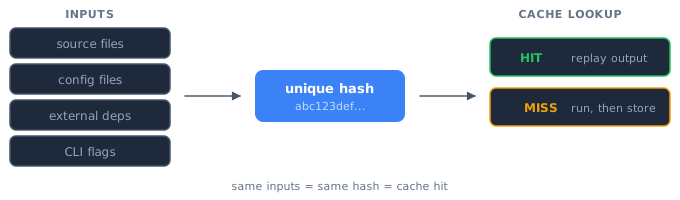
Section titled “How caching works”Before running any cacheable task, Nx computes a unique hash from the task's inputs:
- Source files of the project and its dependencies
- Relevant configuration files
- Versions of external dependencies
- CLI flags and arguments
If the hash matches a previous run, Nx skips execution and replays the cached result. If not, Nx runs the task and stores the result for next time.
What gets cached
Section titled “What gets cached”Nx stores two things for each cached task:
- Terminal output: everything the task printed to stdout/stderr, replayed exactly
- File artifacts: output files restored to the correct location (e.g.,
dist/,coverage/,test-results/,build/for Gradle,bin/for .NET)
Both are restored transparently. Other tools and scripts see the same files and output as if the task had actually run.
Inputs and outputs
Section titled “Inputs and outputs”Inputs are everything that could affect a task's result. Outputs are the files the task produces. Use {projectRoot} to reference paths relative to the project directory and {workspaceRoot} for workspace-level files.
{ "targetDefaults": { "build": { "cache": true, "inputs": ["{projectRoot}/src/**/*", "{projectRoot}/tsconfig.json"], "outputs": ["{projectRoot}/dist"], }, },}Smart defaults
Section titled “Smart defaults”Nx provides sensible defaults out of the box. For example, test specification files (like *.spec.ts) are typically excluded from build inputs because changing a test shouldn't invalidate the build cache. This is configured through named inputs:
{ "namedInputs": { "default": ["{projectRoot}/**/*"], "production": [ "default", "!{projectRoot}/**/*.spec.ts", "!{projectRoot}/**/*.test.ts", ], }, "targetDefaults": { "build": { "inputs": ["production", "^production"], "cache": true, }, },}The ^ prefix in inputs (like "^production") means "include the production files of dependency projects as inputs." This is different from ^ in dependsOn (like "^build"), which means "run this task on dependencies first." The ^ in inputs affects the cache hash directly, while ^ in dependsOn affects task ordering.
With this configuration, modifying a spec file won't bust the build cache, because specs aren't production inputs. But test tasks still use the default input set, which includes spec files.
Inputs aren't limited to files. You can also include environment variables and runtime values in the hash:
{ "namedInputs": { "production": [ "default", { "env": "NODE_ENV" }, { "runtime": "node --version" }, ], },}For more details, see configure inputs.
Now that caching, inputs, and outputs are configured, try it out: change a source file and run nx build my-app. Nx detects the change, computes a new hash, and runs the build. Revert the change and run again to see the cached result restored, including the dist/ output files.
Remote caching
Section titled “Remote caching”By default, Nx caches results on your local machine. Remote caching shares the cache across your entire team and CI pipeline, so a build that ran in CI doesn't need to run again on your machine.
# Connect your workspace to Nx Cloud for remote cachingnx connectThis command guides you through creating a free Nx Cloud account and stores an access token in your workspace. Once connected, cached results are shared automatically.
When a teammate or CI pipeline has already run a task with the same inputs, you get the cached result instantly, even on a fresh checkout.
For more on how remote caching works, see remote cache (Nx Replay). To set up CI with Nx Cloud, see Setting up CI.
Learn more
Section titled “Learn more”- How caching works: deep dive on computation hashing
- Cache task results: full feature documentation
- Configure inputs: fine-tune what affects the hash
- Configure outputs: control what files get cached